[FaithTag] How to Enhance Print Quality
1.Maintain a High Battery Level for the Printer.
To avoid compromised print quality, please keep the printer's battery sufficiently charged. Please check the battery level of the printer. If it is below 30%, please charge it for 2-3 hours before printing.
The printer's battery status can be checked by double-clicking the power button, which generate a QR code displaying the current battery level.
Note: For accurate battery information, please refrain from charging the printer while printing the QR code.
2.Clean the Print Head.
Please use alcohol wipes to clean the cutting section of the printer, especially where there are black lines, to make sure there is no adhesive residue or foreign objects on the print head.
Please open the top cover of the printer and locate the print head shown below:
3.Increase Print Density.
Please adjust the print density in the app. Click on “Print” and adjust the print density in the print preview.
4. Improve the Quality of Print Images.
The fidelity of printed images heavily relies on the quality of the original image. Please ensure that images are of high resolution to achieve the best print quality.
5. Contact support.
Email: support@faithtagstore.com
If the issue persists, please contact our support team and provide the following information:
1. Images of both original and the printed output.
2. A demo video about the whole printing process.
3. The printer's SN and firmware version (accessible via the "Phomemo" app)
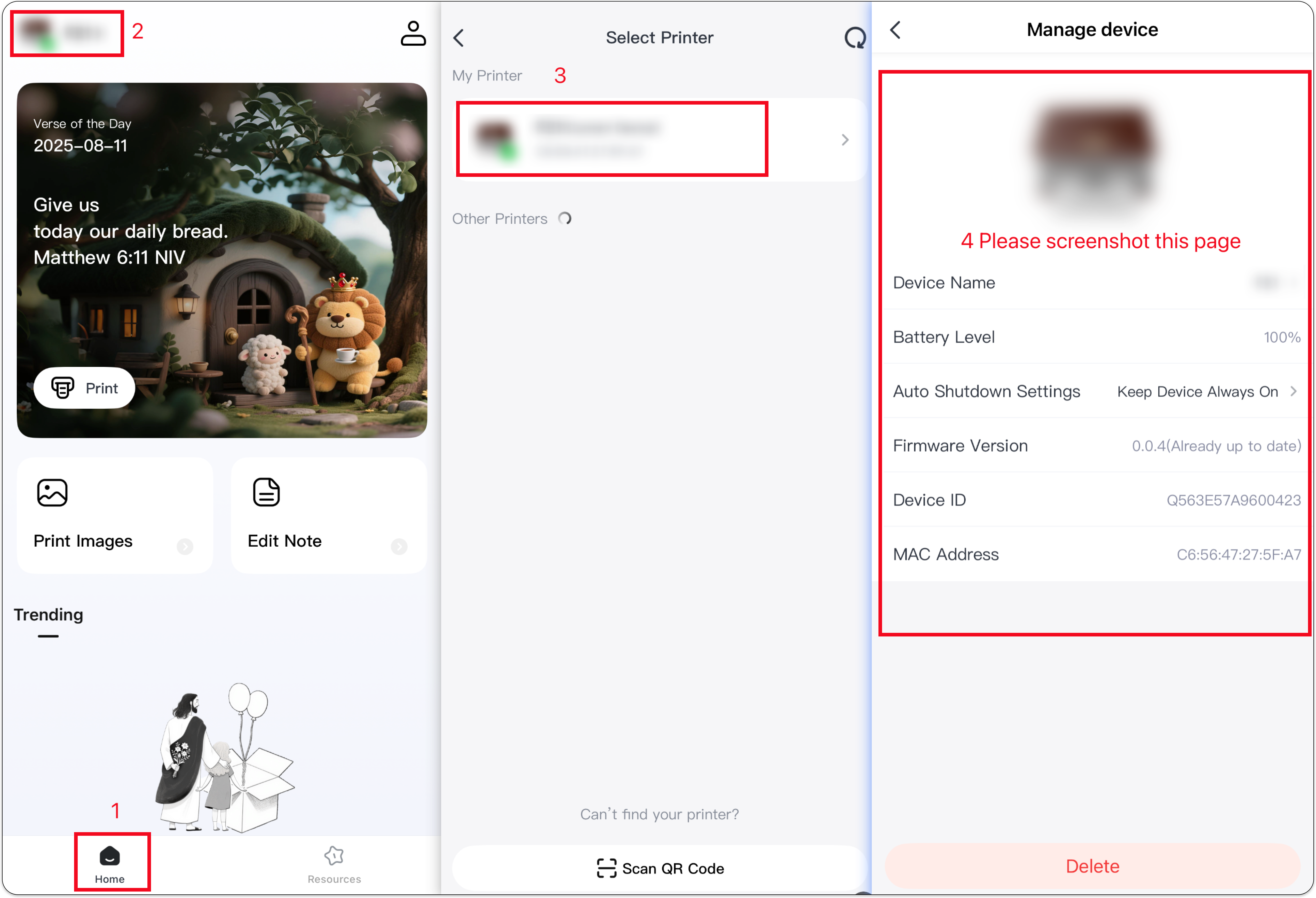
4. Your order number, purchase date, and purchase platform.
Related Articles
[FaithTag] How to Prevent Blurry and Missing Prints
Unclear printouts are usually caused by the following reasons: Low battery level/Insufficient print density/Unclean printhead/Subpar image quality 1. Maintain a High Battery Level for the Printer. To avoid compromised print quality, keep the ...[FaithTag]How to Load Thermal Paper and Print Correctly
1. Load the Thermal Paper Roll Properly Open the printer's top cover and load the thermal paper roll. Close the top cover properly. Here are demo videos about how to install thermal paper roll correctly: 2. Check the Status of the Printer Power on ...[FaithTag] How to Prevent Blank Printouts
Blank printouts can typically be attributed to the following reasons: Incorrect Paper Type / Improper Paper Loading 1. Confirm Paper Type: Mare sure you are using the thermal print paper, you can verify it by checking the packaging or the product ...[FaithTag] How to Connect Printer via Bluetooth to Mobile Devices
1. Turning on the Printer Hold the power button for about 3 seconds. Release when the power indicator light is on. 2. Installing the FaithTag App Download the "FaithTag" App either by visiting provided link or scanning the QR code below. Download the ...[FaithTag ] How to find the printer's serial number (SN) ?
There are two ways to access the SN of the printer: Connecting to "FaithTag" app or Printing a self-test page. 1. Option1: Connecting to "FaithTag" App to access SN. Open the "FaithTag" App. Tap the printer icon in the upper left corner to search for ...